Editing a Location

To edit a location profile (General tab):
- Go to Locations.
- Locate the location name that you want to edit
- Click directly on the location name to display the location's profile
pages. The GENERAL TAB of the profile opens.
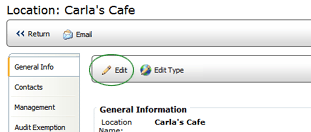
- Click the EDIT button.
- Make the necessary changes.
 |
If you need
to edit the Location ID, see Editing
the Location ID in the Optional Features section of the
online help. |
- Click SAVE.
- Click RETURN button to return to the Location list.
For details on editing the contents of the other tabs, see the specific
tab on the Location Profile page.
To
make a location active:
- To see if the location is currently active, go to the GENERAL TAB
of the location's profile page and look at the Active status.
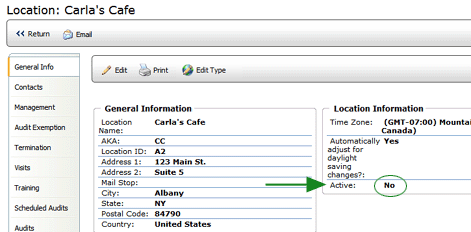
- If the status is not currently designated as Active, then
click the EDIT button.
- Locate and click the ACTIVE checkbox
to enable it.
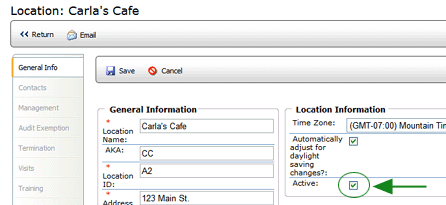
- Click SAVE.
To
edit the Location Type:
- Locate the location name that you want to edit
- Click directly on the location name to display the location's profile
pages. The GENERAL TAB of the profile opens.
- Click the EDIT TYPE button.

- Select the correct location type.
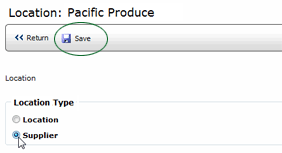
- Click SAVE.
