
When you click the AUDIT FORMS tab, a list of all audit forms associated
with the location is displayed. Administrators may edit the list. If the
location has been given access to the form through a management association,
then the name of the management record appears in the Source column on
the right. Note that if access has been provided through a management
record, then the form cannot be removed unless the management record itself
is edited. (If there is no "direct" access, the entry in the
Source column appears greyed out, indicating that you cannot remove the
association here.)
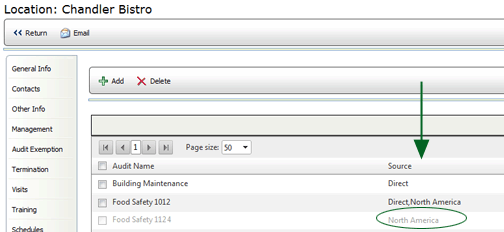
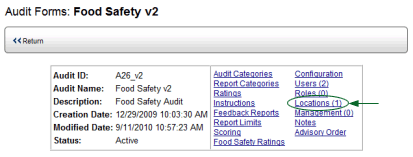
If the audit form has been added directly, either on this tab of the Location profile or from the Locations link on the Audit Form Setup Screen, then DIRECT appears in the Source column, and the audit form may be removed.
To add an Audit Form:
To remove an Audit Form:
