Visits

The Visits page allows you to keep track of all visits made to this location.
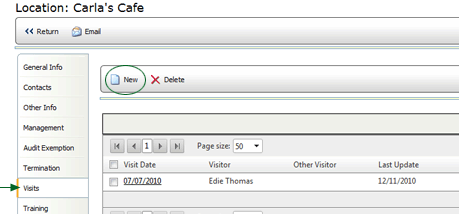
When you select the VISITS tab, the page displays a list of visits that
have been entered into the system. The list includes:
- date of the visit
- company representative who made the visit
- name of other representative present (if applicable)
- date and time the visit was entered into the system
- name of the person who entered this data into the system
To view the details of a visit, click on the entry in the VISIT DATE
field.
From this page you may add, delete, or edit the details of a visit.
To add a visit:
- From the Visits page, click the NEW button.
- Enter the date of the visit. You may enter the date directly into
the VISIT DATE field, or you may click the CALENDAR
 button to select a date
from a calendar.
button to select a date
from a calendar.
- Enter the name of the company representative who visited the location.
- If another representative was present, enter the name of that person
in the OTHER VISITOR field.
- Click the calendar button in the FOLLOW-UP DATE field to specify
the date on which you want to schedule a follow-up visit.
- You may enter any notes that may be necessary in the NOTES text
field.
- In the NEXT STEPS field, enter any required follow-up to problems
that were observed during the visit.
- Click the SAVE button.
To edit the details of a visit:
- Click on the visit that you want to edit.
- Click the EDIT button.
- Make any necessary changes.
- Click the SAVE button.
The changes are saved, and the Change History is updated with the name
of the person making the changes and the date.
To delete a visit:
- Select the visit that you want to delete.
- Click the DELETE button.
The visit is removed from the list.
