
 |
OPTIONAL FEATURE - Contact your RizePoint representative to enable/disable this option. |
When this option is enabled, several new fields become available in the Report Definition screen which allow administrators to determine which users have access to a specific report. You can give access to all users within a specific roles, or you can give access directly to individual users.
Users and/or Roles can be given access to reports either through the Report Definition screen in Reports > Report Setup > Create Management Report, or through the User or Role profile page in System > Manage People > Users/Roles.
| APPLICATION SETUP |
New configuration fields are available in the Report Definition screen that allow you to specify which users or roles have access to the report.
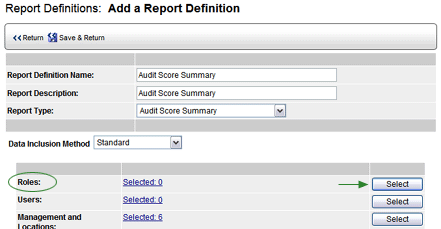
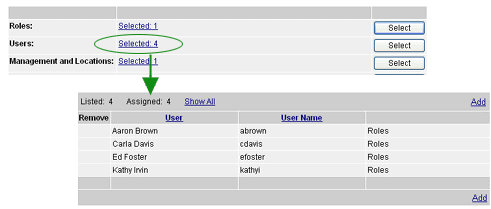
Note that when you specify Roles, the Users field updates to
include all users within the selected role(s).
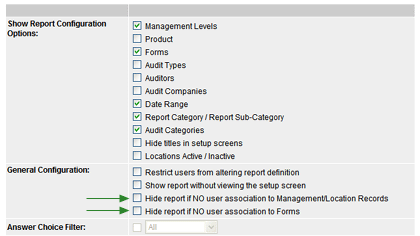
Two new options are available:
 |
If neither option is selected, then ALL specified users and roles will have access to this report. |
When users or roles have been added to report configurations as described above, the User or Role profile page in System > Manage People > Users/Roles shows all reports to which the user has access.
You may also add reports from the User or Role profile pages. When you add a report to a User or a Role, the Report Definition screen updates to include that information.
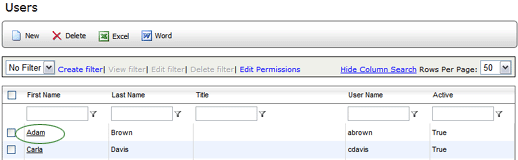
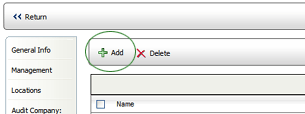
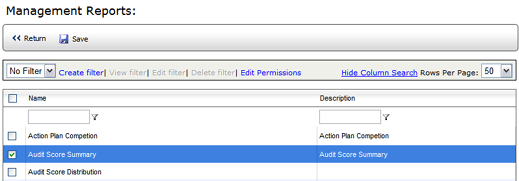
Now if you go back to Reports > Report Setup > Create Management Report and view the Report Definition window for this report, you'll see that this user has been added to the list of users who have access to this report.

The user now appears in the list.
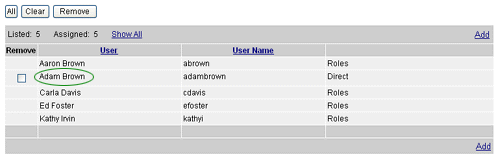
Note the checkbox beside this user. This user was added directly, rather than through a role assignment, so the user may be removed from the list. If a user was added through a role assignment, as were the other users in the image, then may not be removed individually.

ref: MgtRepUserAccss