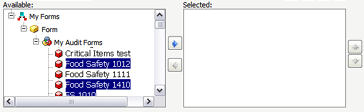
A good report is one that contains only the information necessary to evaluate the results effectively. The prompts page lets you "filter" out unnecessary data, and allows you to generate, for example, a report on audits that were conducted only at certain locations, using only the specified audit forms, and during only the specific time period.
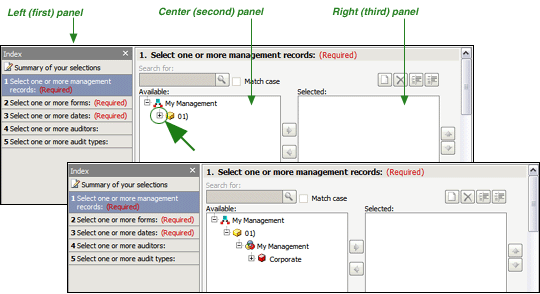
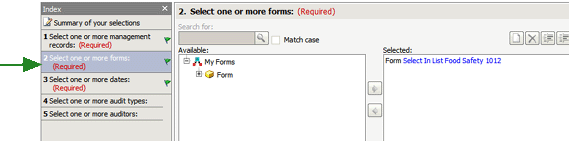
Answer the questions to configure the report as you wish to view it. You must answer, at a minimum, all of the required prompts. Notice that all required questions are noted in red print on the left side of the window. Prompts that are optional will, by default, include all of the information in the report. However, you can answer as many of the optional prompts as required to achieve the results that you want.
 |
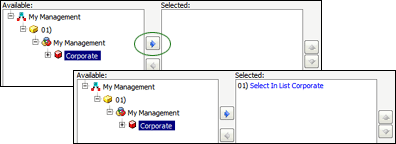
Once you've moved your selection to the Selected column (or if a default answer was provided for you in the Selected column), links become available if you place your cursor over the various sections of the content in the Selected column. These links allow you to further refine your selection, if desired. For example, clicking the Select link allows you to choose either SELECT or QUALIFY. |

If you choose the SELECT option:
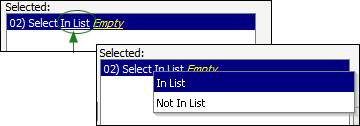
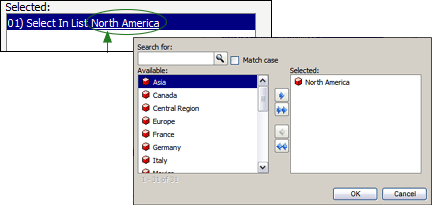
If you choose the QUALIFY option:
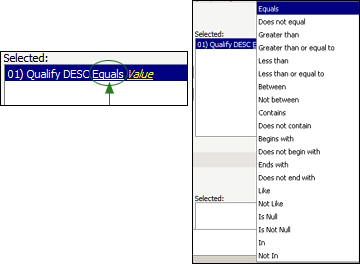
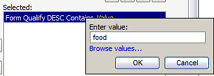
|
Note that in the example shown, audits conducted on any audit form that contains the word "food" will be included in the report. |
Depending on how the prompt was designed, the following scenarios may also apply:
 .
. or DOWN
ARROW
or DOWN
ARROW  .
.
|
*You may specify multiple selections by holding down the CTRL key while clicking on additional items. For example, if you want the report to include several different audit forms, hold down the CTRL key and click once on each of the forms that you want to include, then click the right-arrow to move all selections at once |