Report Search (L1 and L2)

A search function is provided to assist you in locating specific objects, including reports, documents, and folders.
- On the navigation bar, go to Reports > Report Search.
- Select SEARCH. The Search dialog opens.
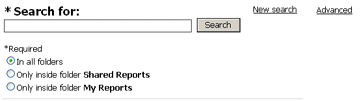
- Into the Search field, enter any text* (one or more characters) contained in the name of the object that you're looking for.
- Select the folders in which you want to search. You may search in the Shared Reports folder, the My Reports folder, or all folders.
- Click the SEARCH button. The specified locations are searched, and all object names that contain the specified search string, located anywhere within the name of the object, appear in a list.
 |
The maximum number of objects returned for any search is 50. |
USING THE ADVANCED SEARCH OPTION
- In the Search dialog, click the ADVANCED link on the right. Several additional search fields are provided.
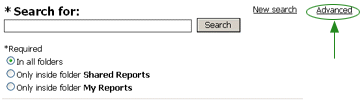
- Enter one or more characters* of the object name into the Search field.
- Select one of the following options from the drop-down list directly below the Search field:
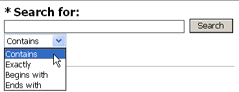
- CONTAINS - Search for all objects that contain the specified text.
- EXACTLY - Search for all objects that match the text exactly as you entered it.
- BEGINS WITH - Search for all objects that begin with the text that you entered.
- ENDS WITH - Search for all objects that end with the text that you entered.
- Select the folders you want to search in.
- Select the type of object that you're searching for.
- Choose whether to search all objects, or to search within a specified time range. Note that you can specify a start and/or end date, or you can specify a date relative to the current date (e.g., modified within the previous 5 days, created within the previous 2 hours, etc.). Also note that you can search either by date the object was created, or by the date the object was modified. In addition, you may also further refine the search by specifying the time frame, in hours, of the creation or modification date.
- Specify if the file was created by you or by another user.
- You can also search on any part of the description.
- Click the SEARCH button.
- All objects that match the specified search criteria are displayed in a list.
|
The maximum number of objects returned for any search is 50. |
To close the Advanced Search window, click the SIMPLE link.

* You can enter wildcard characters, such as an asterisk(*) or a question mark (?) to represent one or more real characters when you are searching. Wildcard characters are often used in place of one or more characters when you do not know what the real character is or when you don't want to type the entire name.
- Use the asterisk (*) to substitute for one or more characters. For example, sales* would locate all words with sales in the title. The location of the asterisk is important: sales* might return salesman, or sales tax, but it wouldn't find dollar sales. To return dollar sales, you could type * sales.
- Use the question mark (?) to replace one character, such as sal?. This would find things like sale, or sal1, but not sales, since there are two characters missing from that term.
