Send Now (L2)

You can send a report to an email recipient from either the Reports list
or the Report window. Note that when sending a report from the Report
window, the report, exactly as you're viewing it, will be sent, even if
changes have been made since last saving it.
From the Folder (Report list):
- Navigate to, and open, the folder in which the report that you
want to email resides. The Reports List is displayed.
Click the SEND NOW button in the Actions column.
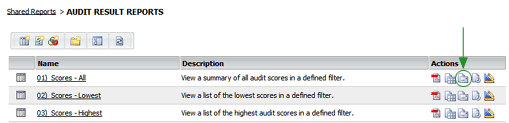
The Send Now window opens.
- Select a recipient for the email, or click the TO button to add
a new email address, then type in a recipient email address and select
an email client. To send this report to more than one recipient, you
may enter multiple addresses, separated by commas, in the NEW ADDRESS
field. (If your address book already contains at least one entry,
then you'll need to click the SEND TO NEW ADDRESS link in order to
enter multiple email addresses.)
 |
Adding multiple recipients does NOT create
a distribution list. Adding more than one email address sends
this report to each recipient, then adds each recipient, individually,
to the address book. |
- Select the format in which you want the report sent. You may choose
from PDF, HTML, or EXCEL.
- The Subject line of the email contains the name of the report.
You may change the Subject if you want.
- You may type in a message (optional).
- If the report requires prompts, set up the report by answering
all of the required prompts. Once all required prompts have been answered,
the OK button becomes available.
- When the report is set up as desired, click the OK button.
From the Report window:
- Select SEND NOW from the File menu, or click the SEND NOW
 button on the toolbar. The Send Now dialog opens.
- Select a recipient for the email, or click the SEND TO A NEW ADDRESS
link, then type in a recipient email address and select an email client.
To send this report to more than one recipient, you may enter multiple
addresses, separated by commas, in the NEW ADDRESS field. (If your
address book already contains at least one entry, then you'll need
to click the SEND TO NEW ADDRESS link in order to enter multiple email
addresses.)
|
Adding multiple recipients does NOT create
a distribution list. Adding more than one email address sends
the report to each recipient, then adds each recipient, individually,
to the address book. |
- Select the format in which you want the report sent. You may choose
from PDF, HTML, or Excel.
- The Subject line of the email contains the name of the report.
You may change the Subject if you want.
- You may type in a message (optional).
- Click the SEND button in the lower right corner of the dialog.
The report, with its current settings, is sent to the recipient(s) in the format you selected.
